If you have received your MCEduHub access code, you can activate the access code by following the below instructions
Step 1: Accessing the Resource
Visit MCEduHub Website
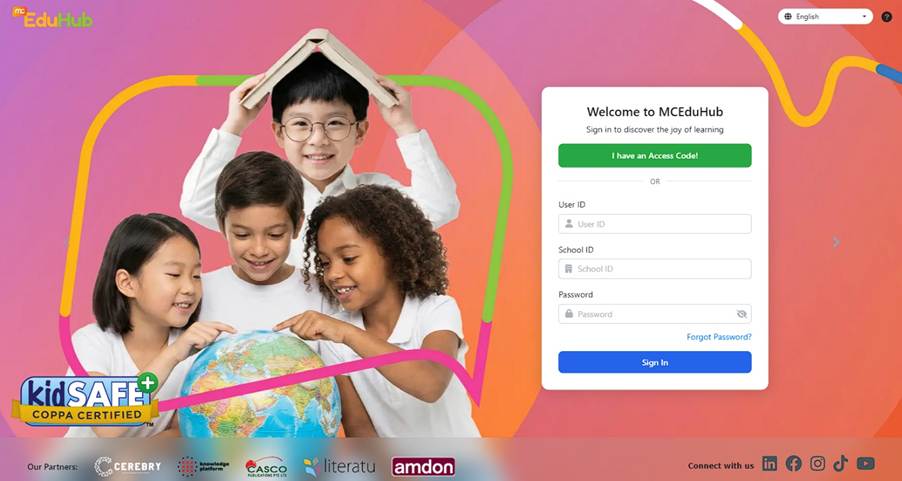
Step 2: Entering the Access Code
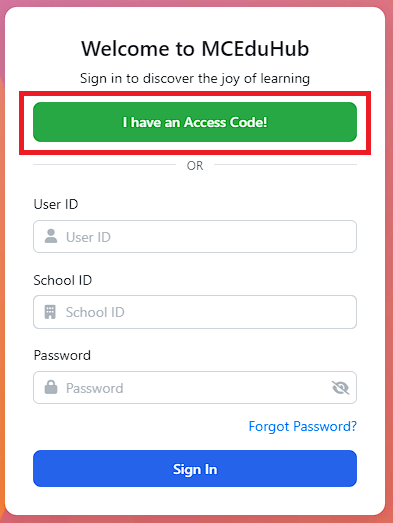
Click on "I have a Access Code" and enter the Access Codes provided above.
Step 3: Complete Registration Process
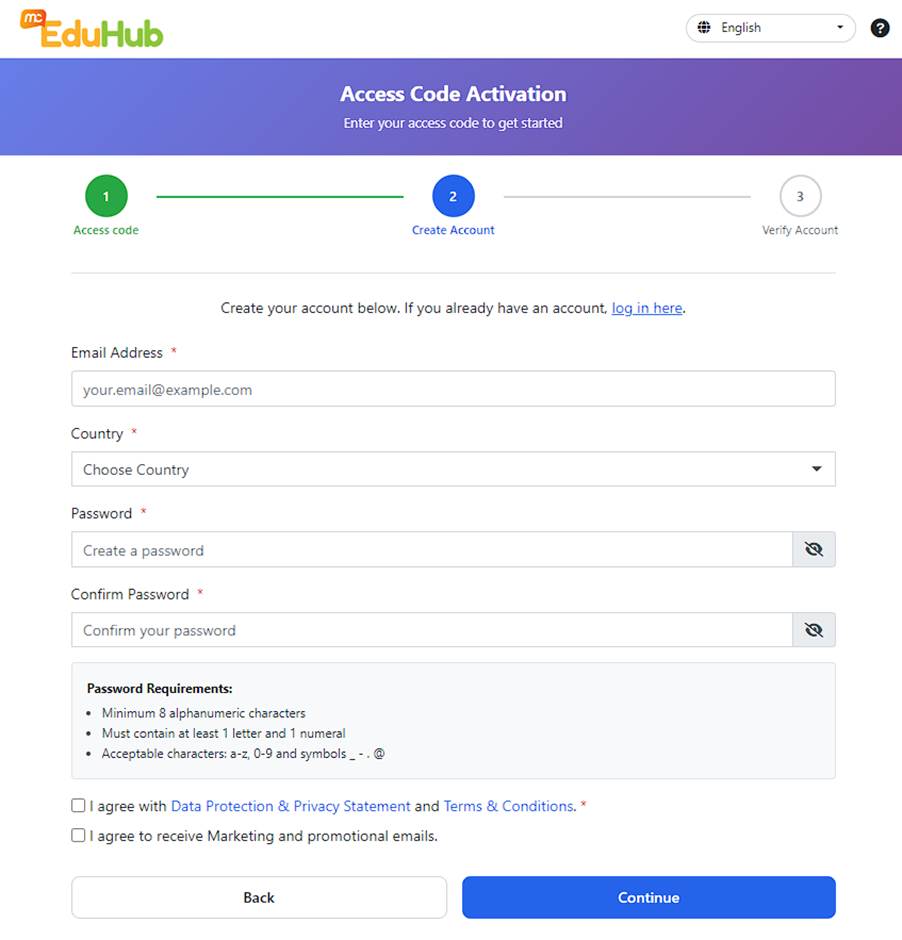
After you have entered the access code, you will be redirected to a "Create account" page. Complete the registration page and click on 'Continue.
Step 4: Verify Account
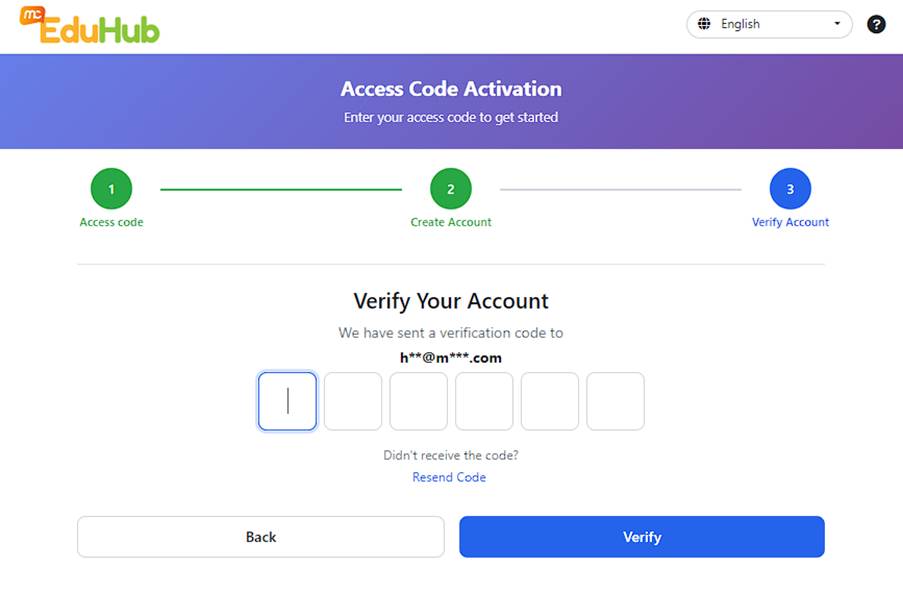
- Upon completing Step 3, a verification code will be sent to your email address. Please enter the verification code to proceed. Click on 'Verify'.
Step 5: Notification of Self-Registration
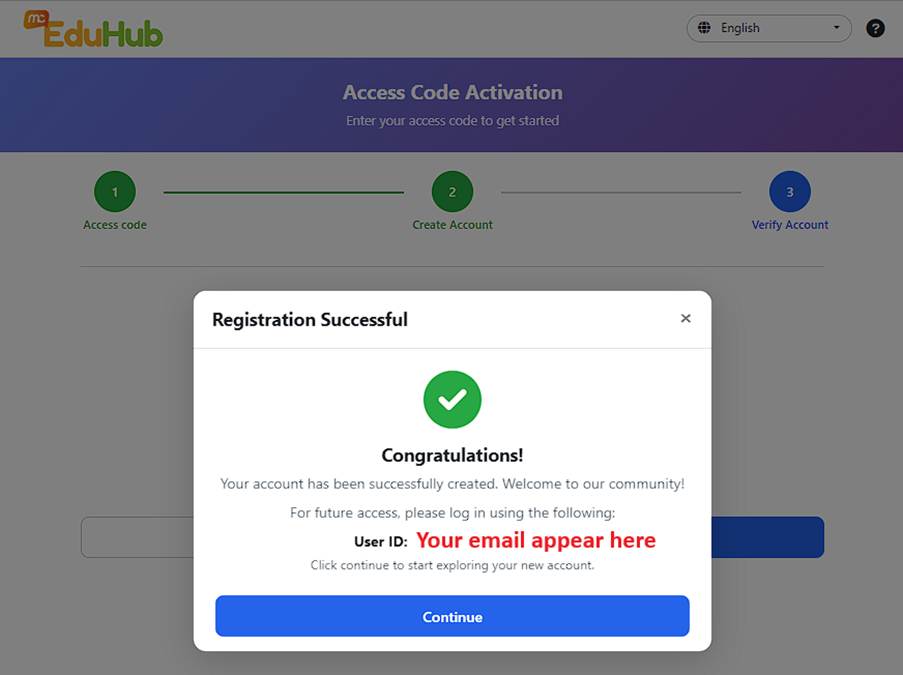
- Upon completion of Step 5, a pop-up will indicate you have completed the self-registration process. Click on 'Continue'.
- We strongly suggest you take a photo or a snapshot of this pop-up
If you are unable to log in due to a missing login ID or password, please visit LINK to obtain the necessary access code and follow the steps to create your account.
If you are unable to log in due to a system outage or another issue, please contact MCE Help Centre at https://mce.freshdesk.com/support/tickets/new.
When submitting the issue, please provide the following details to ensure efficient troubleshooting:
• A detailed description of the issue you encountered.
• Your browser and operating system specifications.
• Screenshots of errors or any other relevant images to assist in diagnosing the problem.
For more information, you can also visit this article for information on What are the browser requirements for MCEduHub
Was this article helpful?
That’s Great!
Thank you for your feedback
Sorry! We couldn't be helpful
Thank you for your feedback
Feedback sent
We appreciate your effort and will try to fix the article